How to Use ChatGPT and Codex for Studying in 2026: Save Flashcards With MCP
Yesterday, ChatGPT asked me why a larger sample usually gives a narrower confidence interval. I produced three confident sentences and somehow avoided the words “standard error.” That gap was worth saving. The rest of our statistics conversation could stay in the chat.
If you are figuring out how to use ChatGPT and Codex for studying, this is the version I would keep: let ChatGPT expose a real gap, choose the card yourself, and let Codex save it through the Flashcards MCP connector. The card lands in your Flashcards collection, where FSRS can bring it back later.
This is a different job from asking ChatGPT to generate a whole deck from a chapter. It is a small handoff from tutoring to long-term review. The connector saves the copy-and-paste work; it does not decide what you should memorize.
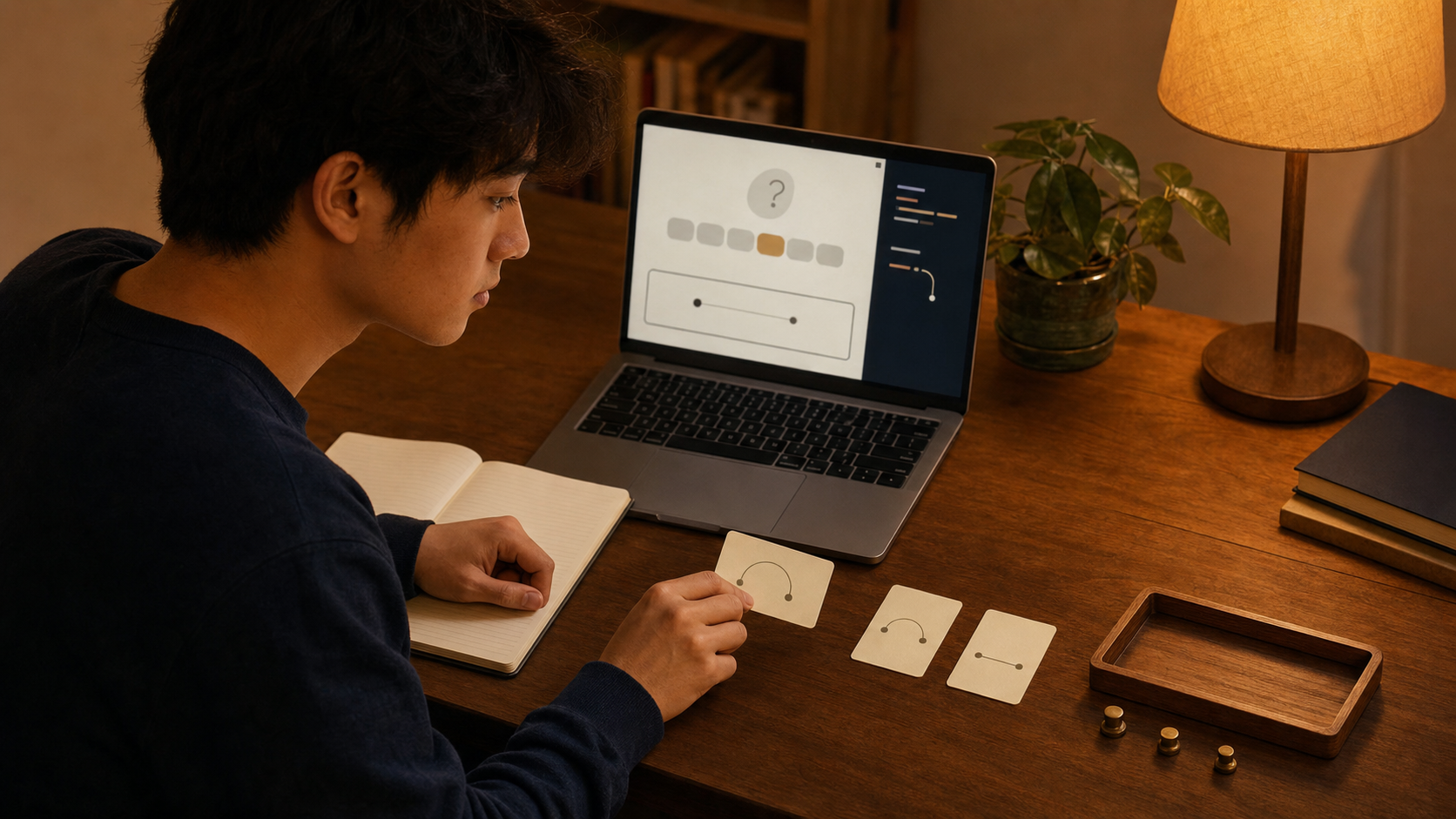
The useful split: ChatGPT tutors, Codex saves, Flashcards schedules
Each part has a narrow job:
- ChatGPT Study Mode asks questions, gives hints, and helps you work through the material.
- You decide which mistakes deserve a permanent card.
- Codex in the ChatGPT desktop app or CLI uses Flashcards MCP to create or clean up the approved cards.
- Flashcards records your reviews and schedules the next one with FSRS.
OpenAI's current Study Mode guide describes a tutor that can work step by step, quiz you one question at a time, and use uploaded notes, images, or PDFs. That makes it a good place to discover what you cannot yet explain from memory.
Only the third step needs MCP. Think of it as a bridge that lets Codex use a small set of approved Flashcards tools. Those tools can list your workspaces, read allowed study data, and change cards or decks after you approve the write.
First, use ChatGPT to find a real weak spot
Open a regular ChatGPT conversation and turn on Study Mode. On ChatGPT web, type @study in the composer and select Study. It also works in Temporary Chats, but not in GPT or Project conversations. Keep the source narrow: one lecture section, a few pages of notes, or the practice problems you just finished.
I would start with this:
Tutor me on this material. Ask one question at a time and wait for my answer.
Use hints before giving the full explanation. When I miss something or answer
slowly, note the exact gap. Do not make flashcards yet.
Answer before asking for help. A smooth explanation can feel familiar even when you could not have produced the idea yourself five seconds earlier.
At the end, ask ChatGPT to show a short candidate list:
Show only the ideas I missed, confused, or could not explain cleanly. For each
one, propose one specific flashcard front and one short back. Keep the cards
grounded in the material I supplied. Do not save anything yet.
Then make the important decision yourself. Keep a card when the gap matters beyond this conversation and the answer can be tested cleanly. Drop warm-up questions, facts you already knew, broad “explain the chapter” prompts, and anything you would hate to grade next week.
For the statistics example, a useful card could be:
Front: Why does a larger sample usually narrow a confidence interval?
Back: It reduces the standard error, so the estimate is more precise.
Three paragraphs about confidence intervals helped during tutoring. One focused distinction belongs in the review queue.
Use Codex inside the ChatGPT desktop app for the MCP handoff
On July 9, 2026, the standalone Codex app merged into the ChatGPT desktop app for macOS and Windows. Codex still has its own view and chat history beside ChatGPT's Chat and Work views. OpenAI explains the change in its What's new guide.
Download or update the ChatGPT desktop app, then select Codex when you are ready to save cards. From New chat, you can open an existing ChatGPT chat and add it to a Codex chat. You can also paste only the approved card list. Either way, Study Mode and the Codex MCP step remain separate experiences inside one desktop application.
If your notes already live in files on your computer, you can stay in Codex and use the same one-question-at-a-time tutoring prompt. Tell it not to write cards until you approve a preview. For most learners, ChatGPT Study Mode is the simpler tutor; Codex is the useful handoff when local files or MCP tools are involved.
Connect Codex to the Flashcards MCP server
The desktop setup is short:
- Open Settings > MCP servers in the ChatGPT desktop app.
- Select Add server.
- Name it
Flashcards, choose Streamable HTTP, and enter this URL:
https://mcp.flashcards-open-source-app.com/mcp
- Save the server, then select Restart.
- After the app restarts, select Authenticate and complete the Flashcards OAuth sign-in in your browser.
- Type
/mcpin Codex to confirm that the server is connected.
Those steps follow OpenAI's current MCP setup for the ChatGPT desktop app and Codex. Flashcards uses OAuth for an interactive login, so you do not need to paste an API key into a normal desktop session. The Flashcards MCP documentation has the full authentication and tool contract if you need to troubleshoot the connection.
Review every write before it runs. Listing workspaces is read-only; creating, rewriting, reorganizing, or deleting stored cards is not. If your school or employer manages ChatGPT, its administrator may also restrict which MCP servers or tools you can enable.
Save only the cards you approved
Switch to Codex in the desktop app and give it the final candidate list. I would use a prompt like this:
Use the Flashcards MCP server. First list my workspaces and ask where these
cards should live. Show the proposed fronts, backs, tags, and any deck changes
before writing anything. Create only the cards I approve. After the write,
read the saved cards back so I can check them.
Codex should start with the read-only workspace tool. Once you choose the workspace and organization, it can prepare the write. Check the workspace, fronts, backs, tags, deck changes, and number of affected records before approving it.
The connector exposes seven tools:
| Tool | What it can do | Writes data? |
|---|---|---|
list_workspaces |
List Flashcards workspaces you can access | No |
sql_query |
Read allowed workspace, card, deck, and review data | No |
sql_execute |
Create, edit, or delete allowed cards and decks | Yes |
get_guide |
Return a reference guide for SQL, card writing, bulk writes, or reviews | No |
next_review_card |
Show the front of the next card to review | No |
reveal_answer |
Show the back of that card after you answer | No |
submit_review |
Record an Again, Hard, Good, or Easy rating and update the FSRS schedule | Yes |
The names look technical because the connector uses a small SQL-style contract. You do not have to write SQL yourself. Ask for the result in ordinary language and review the proposed change.
This is not unrestricted database access. Every request stays inside an authorized workspace, and the server accepts only its documented reads, card or deck writes, and review ratings. The MCP safety guide explains the privacy path, limits, approvals, and deletion risk in more detail.
Codex can clean up the deck after the study session
The same connector is useful when a card turns out to be vague or lands in the wrong place. Start with a read-only inspection:
Read the cards in my Statistics deck that mention confidence intervals. Flag
duplicates and cards that test more than one idea. Do not change anything.
Then approve a small, exact edit:
Rewrite only the two cards I selected using the fronts and backs we just
reviewed. Organize them so they appear in the Inference deck. Show the final
values before the write and read the saved cards back afterward.
In Flashcards, decks are saved filters. Putting a card under a different deck may mean changing its tags, so review those too. You can use the same inspect-then-approve pattern to create a deck, reorganize a small set, or delete cards you explicitly identify. “Delete everything that looks bad” is a risky prompt in any tool with real write access.
The real FSRS review is the one Flashcards records
The MCP connector can read allowed review history in review_events and FSRS state and scheduling fields. Its SQL write tool cannot create review events, submit an Again, Hard, Good, or Easy rating, or change the FSRS state or schedule. The connector can record a rating only through its separate submit_review tool, so you can do a review in the app or let Codex run it.
Open the Flashcards web app or a mobile client when the cards are due. Recall the answer, reveal the back, and choose your rating there. Flashcards records the review, and FSRS decides when the card should return.
Codex can also quiz you informally from card data you authorize. Treat that as extra practice: a quiz on its own records no review and leaves your schedule alone. When you want an official review, ask Codex to run one with the review tools. It calls next_review_card to show only the front, reveal_answer to show the back after you answer, and submit_review to record the rating so FSRS can reschedule the card. Codex grades your answer unless you ask to choose each rating yourself. The AI flashcard tutor guide walks through that review loop in more detail.
Codex CLI uses the same MCP configuration
Most students can skip the terminal. It is handy when your study material already lives in Markdown files, code notes, or a folder of course documents.
Add the remote server with:
codex mcp add flashcards --url https://mcp.flashcards-open-source-app.com/mcp
codex mcp login flashcards
Use codex mcp list to check the saved server, then /mcp inside Codex CLI to inspect the active tools. The desktop Codex view, Codex CLI, and IDE extension share config.toml on the same Codex host. Configure the server once, restart the other local client if needed, and it should appear there too. ChatGPT web does not use that file.
For a headless session where browser OAuth is impractical, Flashcards accepts a long-lived fca_ agent key as a Bearer token. Keep the key in an environment variable and register its name, not the key itself:
codex mcp add flashcards \
  --url https://mcp.flashcards-open-source-app.com/mcp \
  --bearer-token-env-var FLASHCARDS_MCP_TOKEN
The Flashcards API guide explains how to obtain the agent key. Treat it like a password and keep it out of prompts, screenshots, shell history, and version control. OAuth is the easier choice for an interactive computer.
ChatGPT web has a different connector path
ChatGPT web does not read the MCP servers stored in your local Codex config.toml. On the web, remote MCP-backed tools arrive through plugins in ChatGPT Work, and workspace administrators can control which plugins and tools are available.
Custom MCP apps are a separate web setup path. They use ChatGPT Developer mode, and their availability and write permissions depend on the account and workspace. If your workspace lets you add or publish one, follow OpenAI's current Developer mode and MCP apps guide and check the enabled actions before assuming the Flashcards write tool will run.
That leaves four clear paths:
- study in ChatGPT, then use Codex in the desktop app to save approved cards through MCP
- use Codex CLI or the desktop Codex view for both tutoring and MCP card creation
- use a workspace-approved ChatGPT web plugin or custom MCP app when it exposes the tools you need
- copy the selected cards manually
Manual copy is still a good option
You lose very little when you skip the connector. Ask ChatGPT for the final approved cards in plain front/back blocks:
Return only the cards I selected. Put one clear front and one short back in
each block. Include the intended deck or tags as a label. Do not add new cards
or new facts.
Read them once, copy the survivors into Flashcards, and continue with normal review. Manual entry is a sensible choice for private material, a managed school account, or anyone who does not want an AI client to read stored card data.
The companion guide How to Turn ChatGPT Study Mode Into Flashcards focuses on that connector-free tutoring workflow. How to Use ChatGPT to Make Flashcards covers broader card drafting from notes. If you study with Anthropic's tools too, How to Use Claude for Studying shows the parallel tutor-to-MCP loop with Claude's separate connector setup.
Keep the handoff smaller than the lesson
A good ChatGPT study session might contain twenty useful minutes and produce three cards. That is fine. The conversation helped you understand the topic; the cards only need to preserve the gaps that matter later.
My preferred ChatGPT and Codex study workflow is simple: get questioned, notice where recall breaks, approve a few clean cards, save them through Flashcards MCP, and do the real FSRS review in Flashcards. The connector removes copy-and-paste work. You still choose what deserves your future attention.