How to Connect Flashcards to Claude with MCP and Create Cards from Chat
Yesterday I added a test card to Flashcards from inside Claude in about a minute. The useful part was not the demo. The useful part was seeing Claude ask which workspace to use, request approval for the write action, and then drop the card into the real app instead of leaving it trapped in chat.
That is the practical reason to look up Claude MCP flashcards right now.
If you want Claude to create cards directly in your Flashcards workspace, the setup is short: add the Flashcards custom connector, review the tool permissions, enable it in chat, and approve the write call when Claude is ready to save a card.

This is a custom connector, not a directory listing
One important detail first: Flashcards is connected to Claude as a custom connector using remote MCP.
So do not go hunting for a prelisted Flashcards app inside Claude's official connector directory. The normal flow is to open Claude's connector settings page, click the plus button, choose Add custom connector, and paste the Flashcards MCP URL yourself.
The exact Flashcards connector URL is:
https://mcp.flashcards-open-source-app.com/mcp
Direct link: mcp.flashcards-open-source-app.com/mcp
Before you connect it
Two details matter more than people expect.
First, Claude reaches remote MCP servers from Anthropic's cloud infrastructure, not from your laptop. That means the server needs to be reachable on the public internet. Flashcards already is, so the public MCP endpoint above is the one you want.
Second, treat connector permissions like real tool permissions. Connect only to servers you trust, review what each tool can do, and read approval requests carefully before allowing write actions.
How to add the Flashcards MCP connector in Claude
For an individual Claude account, the setup path is:
- Open Customize > Connectors.
- Click
+. - Choose Add custom connector.
- Enter a name for the connector and paste
https://mcp.flashcards-open-source-app.com/mcp. - Add the connector.
- Click Connect and complete the login flow if Claude prompts for it.
- Review the tool permissions before you start using it in chats.
If you are on a Team or Enterprise workspace, an Owner or Primary Owner can add the custom connector under Organization settings > Connectors > Add > Custom > Web. Individual users still need to connect and authenticate it on their side.
Set the first permissions conservatively
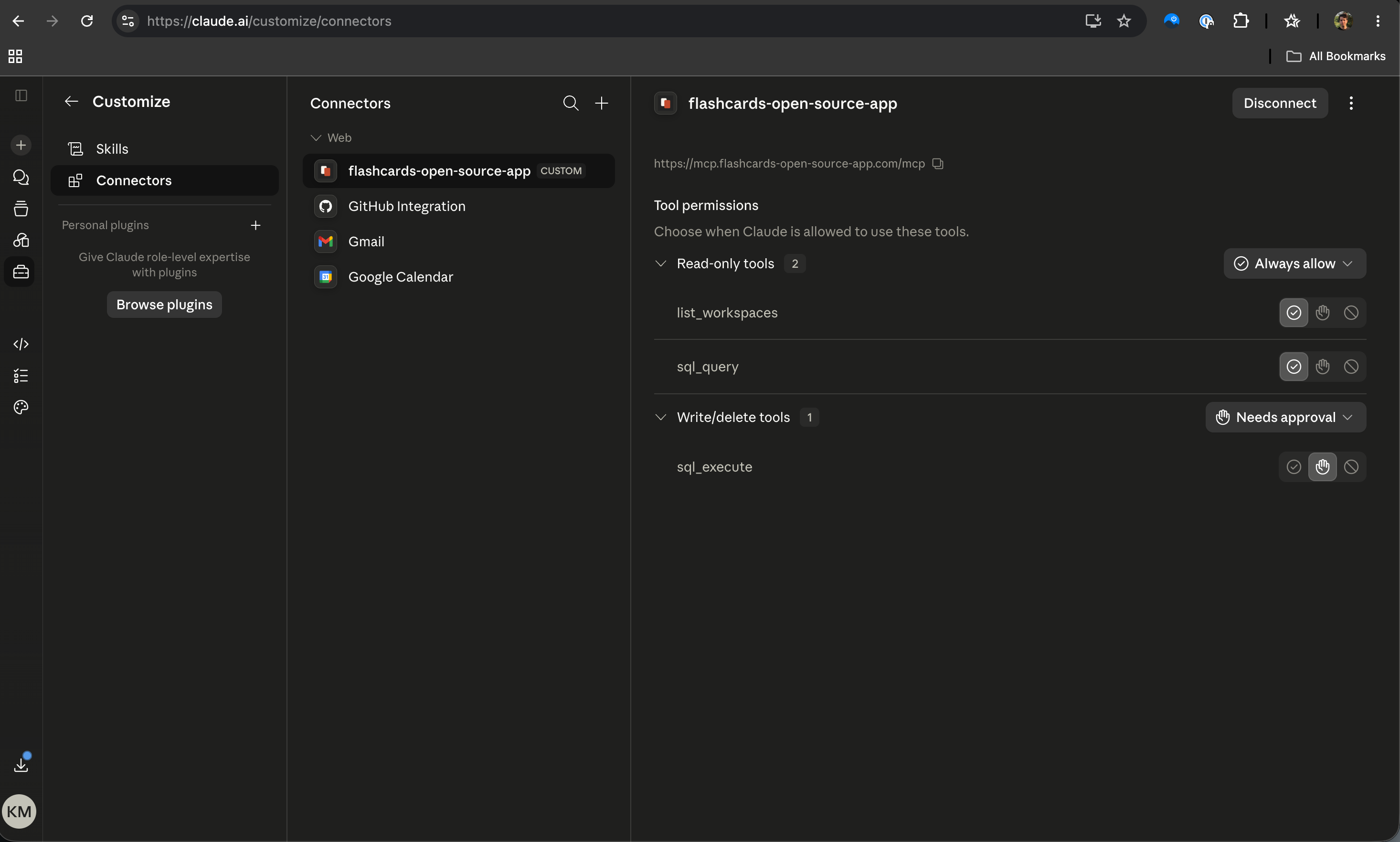
The Flashcards connector shown here exposes a small tool surface:
list_workspacesfor listing available workspacessql_queryfor read accesssql_executefor write actions such as creating cards
Claude lets you set each tool to Always allow, Needs approval, or Blocked.
For a first setup, I would keep the read-only tools on Always allow and keep the write tool on Needs approval. That gives Claude enough room to inspect your workspaces and read data without turning card creation into an unreviewed background action.
That is also what the connector settings screenshot shows here: list_workspaces and sql_query are allowed, while sql_execute still needs your approval.
You can loosen that later if you really want to. I would not start there.
Turn the connector on in the chat where you want to use it
After setup, open a Claude conversation and make sure the connector is available there. The current flow lets you enable connectors from the + button or the / menu inside a conversation, then adjust tool access for that chat if needed.
If Claude is not using the connector when it should, check the obvious things first:
- the Flashcards connector is connected in settings
- the connector is enabled for the current chat
- the write tool is not blocked
That usually fixes the "why is Claude only giving me text instead of creating the card" problem.
What to ask Claude
Keep the prompt plain. Claude does not need ceremony here.
These are good starter prompts:
Create a new flashcard in Flashcards.
Front: What does HTTP 404 mean?
Back: The requested resource was not found on the server.
Tag: web-basics
Ask me which workspace to use if you are not sure.
Before creating anything, list my Flashcards workspaces and tell me which one looks best for language study cards.
Create a new Spanish flashcard in Flashcards.
Front: How do you say "I would like a coffee" in Spanish?
Back: Me gustaría un café.
Tags: spanish, travel
Use my Personal workspace.
I would start with one or two cards, not fifty. The point is to confirm the connector flow, the workspace choice, and the approval pattern before you batch anything larger.
What the create-card flow looks like in practice
This part is refreshingly normal.
You ask Claude to create a card in Flashcards. If you have more than one workspace and no default is obvious, Claude can ask where to put it. After that, Claude uses the write tool and waits for approval if sql_execute is still set to Needs approval.
That is the right behavior.
You should review the write request, approve it, and then let Claude finish. In the screenshot below, Claude asked which workspace to use, ran the Flashcards write action, and reported that the test card had been added successfully.
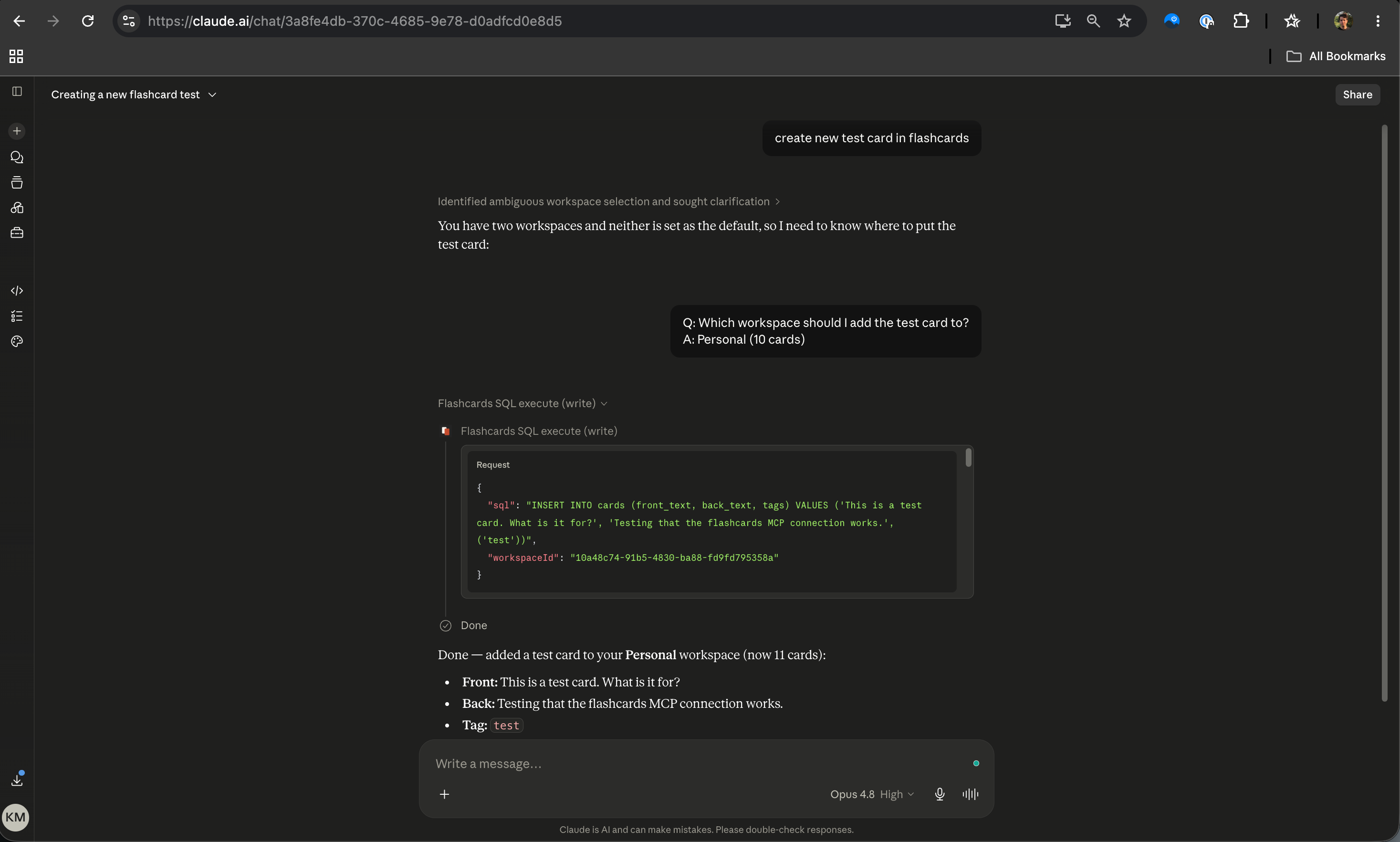
You do not need to care about the raw SQL unless you want to inspect the tool call closely. What matters is the workflow:
- ask Claude to create the card
- choose the workspace if Claude asks
- review and approve the write action
- confirm the saved card looks right
That is enough to start using create flashcards in Claude without pretending Claude itself is the review app.
A few honest limits
This setup is useful, but it is not magic.
Claude can help you create cards inside Flashcards. It can also read from the connector, inspect workspaces, and query data through the read tools. That does not mean every card Claude drafts will be good, and it does not mean you should blindly approve every write request.
I would still treat Claude as the drafting and entry layer, then use Flashcards for the parts that matter later:
- cleaning up weak cards
- organizing decks and tags
- reviewing with spaced repetition
- studying from your real workspace on the devices you already use
If you want better card-writing prompts before you connect the tool layer, How to Use Claude to Make Flashcards is the better starting point. If your goal is broader than card creation, How to Use Claude for Studying covers the bigger workflow.
After Claude creates the card, review it in the real app
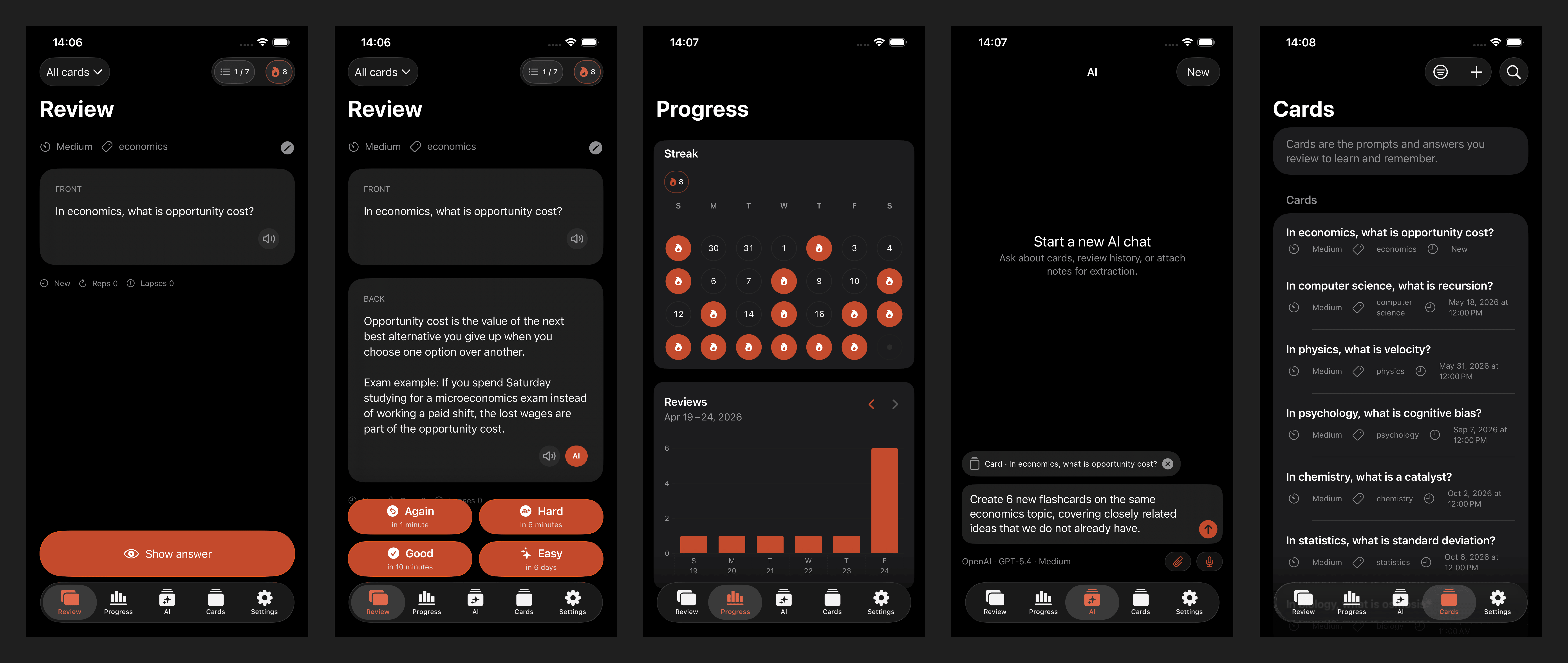
This is the part I like most about the setup. The card does not stay in a nice-looking AI transcript. It lands in Flashcards, where you can actually review it later.
You can open the hosted web app, check the card on mobile, or keep going in your normal study flow:
- Flashcards web app
- Flashcards for iPhone and iPad on the App Store
- Flashcards for Android on Google Play
If you have not used the product yet, Getting Started is the fastest way in.
The short version
If you searched for connect Flashcards to Claude, this is the real flow:
- open Claude's custom connector settings
- add
https://mcp.flashcards-open-source-app.com/mcp - connect and review permissions
- keep read tools open and write tools on approval at first
- enable the connector in your chat
- ask Claude to create a card
- approve the write call
- review the saved card in Flashcards
That gets you from Claude chat to an actual Flashcards workspace without fake integrations, without manual copy-paste, and without losing control over write actions on day one.